The 10 Mac and Windows Shortcuts That Save Remote Workers an Hour a Day
Stop clicking. The average remote worker loses 20+ minutes a day to navigation they could eliminate with keyboard shortcuts. Here are the 10 highest-return shortcuts across Mac and Windows — plus the math on why they compound into something worth caring about.
Stop Clicking. Start Shipping.
Here is a number worth sitting with.
The average knowledge worker reaches for their mouse 1,500 times per workday.
Not 1,500 clicks — 1,500 transitions. Hand leaves keyboard, travels to mouse, does a thing, returns to keyboard.
Each one takes roughly 2 seconds.
That's 50 minutes a day in physical overhead before you've done a single thing that requires actual thinking.
Now consider that most of those transitions are repetitive — the same window switches, the same copy-paste sequences, the same navigation patterns, done identically every single day — and you start to see the problem.
Remote tech workers spend real time optimizing their tools, their workflows, their infrastructure. And then they spend 50 minutes a day moving their hand back and forth across a desk.
The fix is not exciting. It is not a new app or a productivity philosophy.
It is keyboard shortcuts.
Specifically, the ten that eliminate the most overhead in a real remote workday — not in theory, but in the actual flow of someone who switches between a code editor, a browser, a Slack window, and a dozen other contexts all day.
Here's the math and the list.
The Time Math (Because It Adds Up Fast)
Before the shortcuts themselves, the compounding logic is worth making explicit.
A shortcut that saves 5 seconds, used 20 times a day, saves 100 seconds — just under 2 minutes. That sounds trivial.
Over 250 working days: 500 minutes. Over 8 hours a year. From one shortcut.
The shortcuts below save anywhere from 5 to 30 seconds each, used anywhere from 10 to 50 times a day depending on your workflow. The cumulative savings across all ten, for a full-time remote worker, lands somewhere between 45 and 90 minutes per day.
That's not marginal. That's a meeting you don't have to stay late for. That's an hour you get back.
The 10 Shortcuts
Each shortcut below includes the Mac version, the Windows equivalent, the time saved per use, and a realistic daily usage estimate so you can calculate your own return.
1. App Switching Without the Dock
Mac: ⌘ + Tab
Windows: Alt + Tab
Time saved per use: 3–5 seconds
Daily uses: 30–80
This is the highest-frequency shortcut in any remote worker's day.
The alternative — clicking the Dock or Taskbar to switch apps — requires you to leave the keyboard, find the right icon, and click it. The shortcut keeps you in the keyboard, surfaces a visual switcher, and gets you there in under a second.
Power move (Mac): Hold ⌘ and tap Tab to cycle forward. Add Shift to cycle backward. Release on the app you want.
Power move (Windows): Windows + Tab opens the full Task View with virtual desktops — useful when you have multiple browser windows or workspace sets you switch between.
If you do nothing else from this list, make this one automatic. It pays back faster than anything else here.
2. Instant Window Snapping and Arrangement
Mac: ⌃ + ⌥ + Arrow keys (with Rectangle app, free) or ⌘ + ⌃ + F for full screen
Windows: Windows + Arrow keys (built in, no app needed)
Time saved per use: 5–10 seconds
Daily uses: 10–20
Arranging windows by dragging them is a slow, imprecise process. Keyboard-based window snapping places a window at exactly half, two-thirds, or full screen in a single keystroke.
On Windows, this is built in and works beautifully. Windows + Left snaps a window to the left half. Windows + Up maximizes it. Windows + Right snaps it right. Pair with Windows + Tab to tile two apps side by side without touching the mouse.
On Mac, the native options are more limited — full screen or nothing. The free app Rectangle adds the full snapping vocabulary Windows users take for granted, and it maps to intuitive shortcuts out of the box.
If you regularly work with two apps side by side — a browser and an editor, a Zoom call and a doc — this shortcut changes the entire feel of that workflow.
3. Spotlight / Everything Search
Mac: ⌘ + Space (Spotlight) or ⌘ + Space with Raycast installed
Windows: Windows + S or Windows + Q
Time saved per use: 5–15 seconds
Daily uses: 15–30
Opening anything — an app, a file, a calculation, a quick web search — without touching the mouse.
Type two or three characters, hit Enter. Done.
On Mac, Spotlight is solid for apps and files but limited for everything else. Replace it with Raycast (free) and it becomes a genuinely powerful command interface — searching Notion pages, opening Jira tickets, running scripts, checking your calendar.
On Windows, the built-in search has improved significantly in recent versions. PowerToys Run is the power-user upgrade — faster, more extensible, and searchable across more sources.
The habit to build: before you reach for the mouse to open anything, try the keyboard search first. Within a week it becomes faster than any other method.
4. Copy, Cut, Paste — And Paste Without Formatting
Mac: ⌘ + C, ⌘ + X, ⌘ + V / ⌘ + Shift + V (paste plain text)
Windows: Ctrl + C, Ctrl + X, Ctrl + V / Ctrl + Shift + V
Time saved per use: 2–8 seconds
Daily uses: 40–100+
You know these. The one most people don't use is paste without formatting.
Copying text from a webpage or document and pasting it into Slack, Notion, or an email drags in the source formatting — font, size, color, spacing. Then you spend time manually fixing it.
⌘ + Shift + V (Mac) or Ctrl + Shift + V (Windows / most apps) pastes as plain text, matching the destination format automatically.
Bonus — Clipboard History:
Mac: Install Raycast or Maccy (free) for clipboard history. ⌘ + Shift + V in Raycast opens a searchable clipboard history.
Windows: Windows + V opens built-in clipboard history — multiple items, searchable, pinnable.
Clipboard history is one of those tools that feels impossible to give up once you've used it. The ability to paste something you copied three items ago without recopying it saves more time than the keystroke suggests.
5. Select All, Then Act
Mac: ⌘ + A
Windows: Ctrl + A
Time saved per use: 3–10 seconds
Daily uses: 10–25
Select everything in the current context — a document, a folder, a text field — and then do something with it.
The power is in chaining: ⌘ + A → ⌘ + C selects and copies an entire document in two keystrokes. ⌘ + A → Delete clears a text field without clicking and dragging. ⌘ + A in Finder → ⌘ + C copies an entire folder's contents for a paste or move.
It's the shortcut you use inside other shortcuts, which makes it a force multiplier rather than a standalone tool.
6. Undo and Redo — Everywhere
Mac: ⌘ + Z (undo) / ⌘ + Shift + Z (redo)
Windows: Ctrl + Z / Ctrl + Y
Time saved per use: 5–20 seconds
Daily uses: 10–30
Everyone uses undo. Fewer people use redo, which is where the real time savings are.
The workflow: make a change, immediately undo it to see the before state, then redo it to compare. Useful for design decisions, writing edits, and any context where you're evaluating a change.
The less obvious use: in file managers, ⌘ + Z undoes a file move or rename. If you've ever accidentally moved a file and spent two minutes finding it, this shortcut is the recovery you didn't know existed.
7. Find Anything on the Current Screen
Mac: ⌘ + F
Windows: Ctrl + F
Time saved per use: 5–30 seconds
Daily uses: 10–20
Works in browsers, documents, PDFs, most editors, and most apps.
The reflex to build: when you're looking for something specific on a page or in a document, reach for ⌘ + F before you reach to scroll. Scanning a long document manually for a specific term takes 30–60 seconds. Find takes 3.
In the terminal: Ctrl + R triggers reverse search through command history. Type part of a command you've run before and it surfaces the full command. For developers who run the same terminal sequences repeatedly, this is a significant daily time-saver.
8. Lock Screen Instantly
Mac: ⌘ + Ctrl + Q
Windows: Windows + L
Time saved per use: 5–10 seconds
Daily uses: 2–5 (but when you need it, you need it fast)
A quick-lock reflex is a security habit worth building — especially for remote workers in shared spaces, co-working environments, or homes with other people around.
The alternative — waiting for a screensaver timeout or navigating through a menu — takes 30–60 seconds and requires you to remember to do it. The keyboard shortcut becomes muscle memory after a few days.
One keystroke. Screen locked. Hands back on the keyboard.
9. Screenshot With Precision
Mac: ⌘ + Shift + 4 (select area) / ⌘ + Shift + 4 + Space (capture a window)
Windows: Windows + Shift + S (Snipping Tool)
Time saved per use: 10–20 seconds
Daily uses: 5–15
The full-screen screenshot is rarely what you want. A selected-area screenshot — exactly the region you need, nothing else — is what you send in Slack, drop into a bug report, or paste into a doc.
⌘ + Shift + 4 on Mac turns your cursor into a crosshair. Drag the region you want. The screenshot copies to clipboard automatically (add ⌃ to the shortcut) or saves to Desktop.
On Windows, Windows + Shift + S opens the Snipping Tool overlay with options for rectangular, freeform, window, or full-screen capture.
The clipboard copy variant is particularly powerful — capture exactly what you need, switch to the destination app, paste. No file saved, no clutter, no steps in between.
10. Close and Reopen Tabs
Mac: ⌘ + W (close tab) / ⌘ + Shift + T (reopen last closed tab)
Windows: Ctrl + W / Ctrl + Shift + T
Time saved per use: 3–8 seconds
Daily uses: 10–30
⌘ + W closes the current tab without touching the mouse. In a browser, it moves you to the previous tab. In an app, it closes the current window or document.
⌘ + Shift + T is the one that earns its place on this list — it reopens the last closed tab. If you've ever accidentally closed a tab and spent 30 seconds hunting through history for it, this shortcut is the fix. It also stacks — press it multiple times to reopen several tabs in the order you closed them.
Pair these two and you get a clean tab discipline loop: close tabs you're done with aggressively (⌘ + W), knowing you can recover any of them instantly (⌘ + Shift + T) if you need them again.
The Habit Build: How to Actually Internalize These
Knowing shortcuts and using them reflexively are different things.
The brain defaults to familiar patterns — reaching for the mouse is what you've always done, and that groove is deep. Overwriting it requires deliberate friction.
Two approaches that work:
The one-a-week method: Pick a single shortcut from this list. Use it exclusively for one week before adding the next one. Seven days of forced repetition is enough to build the reflex. After ten weeks you've internalized all ten without overwhelming yourself.
The blocker method: Physically move your mouse to a less convenient spot on your desk for one week — or unplug it entirely for certain tasks. The increased friction of reaching for the mouse forces your fingers to look for the keyboard alternative.
The shortcuts that stick fastest are the ones that solve an immediate frustration. Start with whichever one on this list made you think "I do that constantly."
Recommended Tool: Keychron K2 Pro Wireless Mechanical Keyboard

Keychron K2 Pro Wireless Mechanical Keyboard — Mac and Windows Compatible
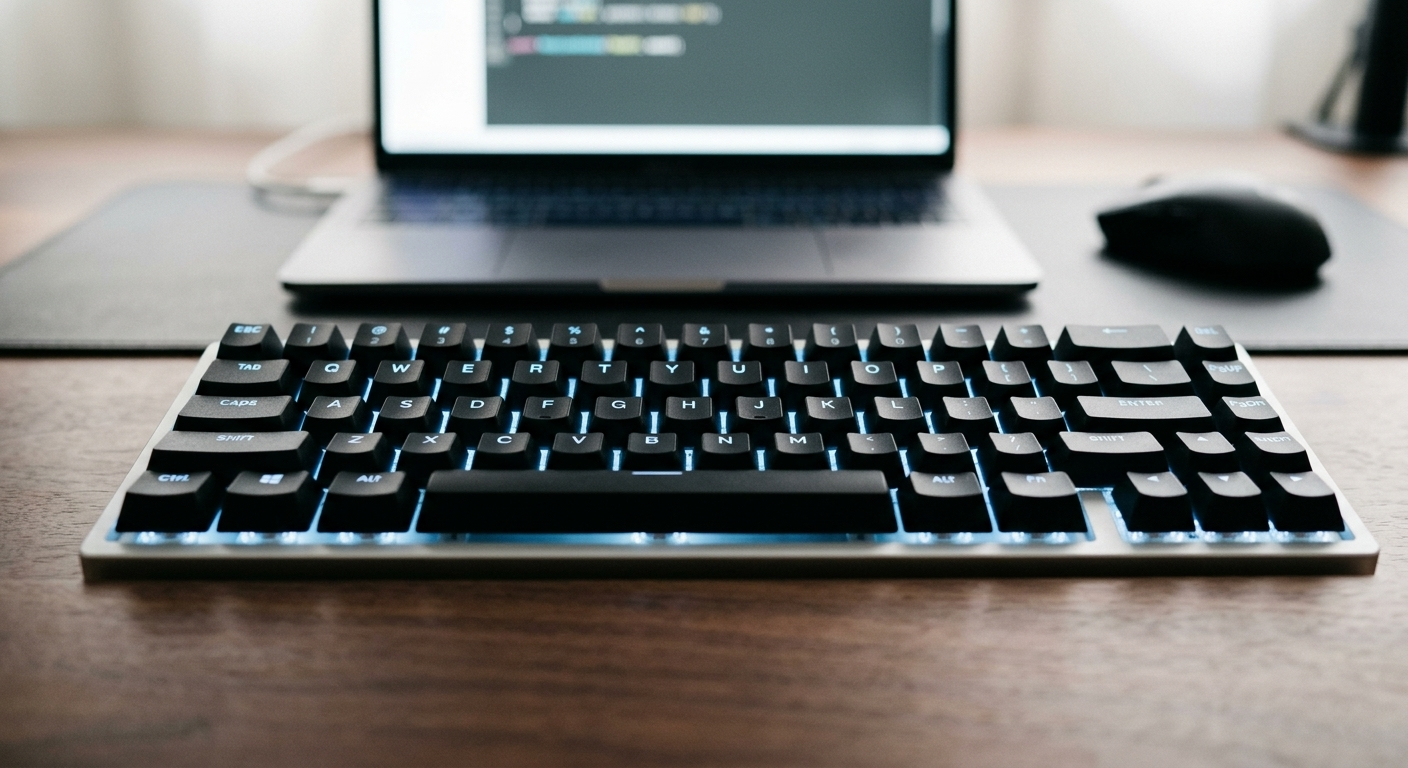
A keyboard you actually enjoy typing on changes the relationship with every shortcut on this list. The Keychron K2 Pro is the mechanical keyboard built specifically for the remote worker who moves between Mac and Windows — it ships with both keycap sets, toggles between OS modes with a physical switch, and connects to up to three devices over Bluetooth. The tactile feedback of mechanical switches makes shortcut execution feel intentional and precise in a way membrane keyboards don't. Hot-swappable switches mean you can tune the feel without replacing the board. If you're going to spend 8 hours a day with a keyboard, it should be one worth spending 8 hours with.
As an Amazon Associate, we earn from qualifying purchases. This helps support our blog at no extra cost to you.
 Trusted marketplace
The Compounding Logic, One More Time
You will not notice the difference after day one.
You will notice it after two weeks, when the shortcuts you've practiced have become reflexive and the reaching-for-the-mouse transitions have started to disappear.
You will notice it most when you sit at someone else's computer and feel the friction of every task that your own setup has quietly eliminated.
The shortcuts in this post aren't impressive on their own.
Compound them across a full workday, a full week, a full year, and you get something that actually matters: more of your attention available for the work that requires it, and less of it spent on the mechanical overhead of navigating a computer.
Stop clicking.
Start shipping.